Upgrade Your VMs Harware to a Specific Version
In today’s article, I’ll be showing how to upgrade the VM hardware version using PowerCLI for either one VM or multiple VMs at a time to version 11, 12, 13, 14, 15, or any version. Additionally, I’ll show you how to target a specific group of VMs by name or based on their location in a given cluster using a one-line command.
I recently wrote an article about How to Downgrade VMware Hardware Version due to incompatibility, but what about upgrading to a particular version? It’s easy to upgrade VMs to the latest version within vCenter Server or even using PowerCLI. However, what if you needed to upgrade dozens or even hundreds of VMs to a specific version to maintain compatibility. Using the HTML5 client only allows you to upgrade to the latest version, but sometimes that’s not what you’ll want. While you can connect directly to an ESXi host client, then modify each VM there, you would need to login to multiple ESXi hosts, which would not be ideal if you have many VMs to change.
If you need help installing and configuring PowerCLI, please see my article Install VMware PowerCLI.
Upgrade One VM
Let’s begin by looking at how to upgrade VM version for one VM, which is simple using PowerCLI.
Start out by ensuring you are targeting the correct VM by listing the name of the VM, power state and the current set version by running the following command:
Get-VM VM13 | select Name,PowerState,VersionWhich produces the following output:
Get-VM VM13 | select Name,PowerState,Version

Name PowerState Version
---- ---------- -------
VM13 PoweredOff     v13
In the example, you can see that the VM is at version 13 and we’ll want to upgrade to version 14 by typing:
Get-VM VM13 | Set-VM -Version v14 -Confirm:$falseThe command above gets a VM named “VM13”, then sets the version to “v14” and suppresses the confirmation message by using “-Confirm:$false”. If you’re new to PowerShell, you can omit this to get the warning and play it safe each time you make the change.
This is the error you’ll encounter when trying to upgrade to v15:
get-vm VM21 | set-vm -Version v15
Set-VM : Cannot bind parameter 'Version'. Cannot convert value "v15" to type
"VMware.VimAutomation.ViCore.Types.V1.VM.VMVersion". Error: "Unable to match the identifier name v15 to a valid enumerator
name. Specify one of the following enumerator names and try again:
Unknown, v4, v7, v8, v9, v10, v11, v12, v13, v14"
At line:1 char:31
+ get-vm VM21 | set-vm -Version v15
+                               ~~~
    + CategoryInfo          : InvalidArgument: (:) [Set-VM], ParameterBindingException
    + FullyQualifiedErrorId : CannotConvertArgumentNoMessage,VMware.VimAutomation.ViCore.Cmdlets.Commands.SetVM
This also shows you all the valid version numbers that VMs can be upgraded to, which are:
- Unknown
- v4
- v7
- v8
- v9
- v10
- v11
- v12
- v13
- v14
See VMware https://kb.vmware.com/s/article/1003746 for a complete list of versions and their product compatibility.
Upgrade Multiple VMs
Next, let’s look at targeting multiple VMs by their name using a wildcard or a specific list of VMs. We’ll start by listing all the VMs in my lab.
Get-VM | select Name,PowerState,Version | sort Name

Name  PowerState Version
----  ---------- -------
DC     PoweredOn     v14
VCSA   PoweredOn     v10
VM11  PoweredOff     v14
VM13  PoweredOff     v14
VM14  PoweredOff     v14
VM15  PoweredOff     v14
VM20  PoweredOff     v11
VM21  PoweredOff     v11
WEB01 PoweredOff     v11
WEB02 PoweredOff     v11
As you can see, I have VMs whose names start with VM## and WEB##, but only VMs that start at 20 and up need to be upgraded, as well as both my web VMs. I’ll target only those with the command below.
Get-VM VM2*,WEB01,WEB02 | Set-VM -Version v14 -Confirm:$false

Name                 PowerState Num CPUs MemoryGB
----                 ---------- -------- --------
WEB01                PoweredOff 1        4.000
VM21                 PoweredOff 1        4.000
WEB02                PoweredOff 1        4.000
VM20                 PoweredOff 1        4.000
Upgrade Multiple VMs by Cluster
What about upgrading all the VMs within a given cluster. I think you’ve seen how powerful PowerCLI is, and targeting VMs by the cluster is no problem. Using the same commands above, I’ll append the following to target all the VMs within a specific cluster named “LAB”, but first I’ll want to list them to make sure I have the proper VMs.
Get-Cluster LAB | Get-VM | select Name,PowerState,Version | sort NameOnce I know I have the proper list of VMs, you can do the following:
Get-Cluster LAB | Get-VM | Set-VM -Version v14 -Confirm:$falseUpgrade Multiple VMs using a PowerShell GUI
What if you want to pick specific VMs out of a list of hundreds of VMs by choosing them from a list interactively. Easy! Here’s how you do it:
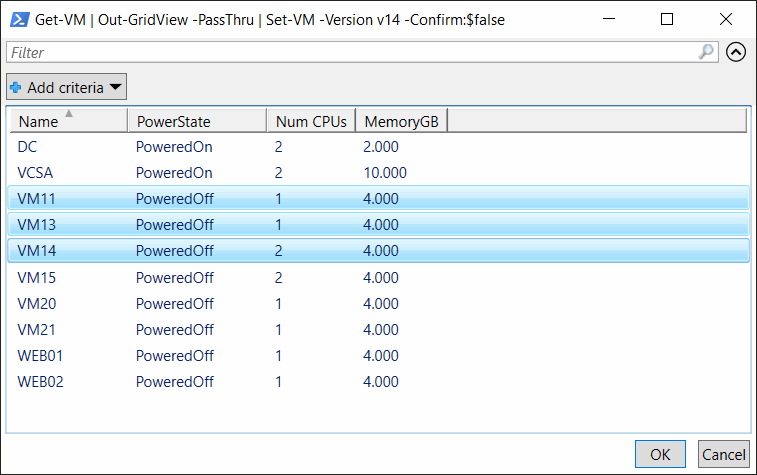
Get-VM | Out-GridView -PassThru | Set-VM -Version v14 -Confirm:$falseThe magic happens by using Out-GridView -PassThru which outputs the complete list of VMs to the GUI shown below, which you can then use to choose your VMs by selecting them individually or even using a filter at the top of the window, then clicking OK to continue doing the upgrade for your chosen VMs.
Upgrade Multiple VMs by Using The HTML5 Client
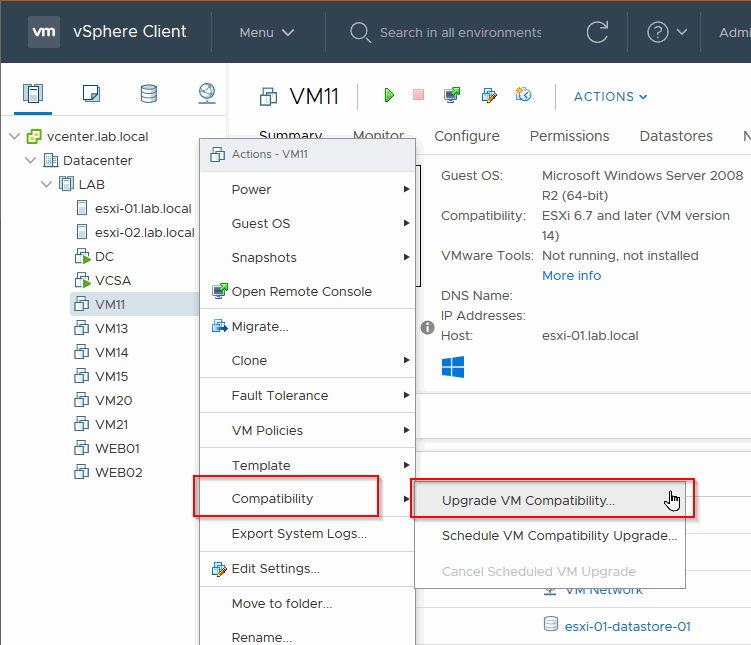
Lastly, while this article was on how to use PowerCLI, it would not be complete unless I show you how to upgrade the VM hardware version in the web client (the correct name would be HTML5 Client). Simply right-click the VM, hover over Compatibility, then choose one of the options presented. The “Upgrade VM Compatibility” will upgrade the VM immediately, while the other option will schedule it the next time the VM is rebooted.