Automating A Daily VMware Snapshot Report PowerCLI
Working with snapshots within your VMware environment is a typical everyday task, and 3rd party tools also use them for backup and replication. In your day-to-day tasks, you’ll end up taking snapshots if your developers or others need to test out new code or do an upgrade, but sometimes due to our hectic schedule, we may forget to go back and delete them. Not only that, but some software can also leave snapshots behind if there are any interruptions in its process.
While you can manually inspect each VM, it would not be practical for hundreds or thousands of VMs. You could write a script and run that manually each morning, but that goes back to the original problem that we sometimes forget. Our solution would be to automate a VMware snapshot report email and have it delivered each morning at a specific time for the team or us to take action.
The script itself is straightforward, but I also like to make things presentable, so added a little CSS to make the report a bit nicer visually. This way, you’ll have yourself a VMware daily snapshot report delivered straight to your inbox that’s a bit nice looking.
Requirements
You’ll need the following to make this work:
- Powershell - Running on Windows OS (Desktop or Server Edition) will do. Linux is now supported, too.
- PowerCLI - Learn how to Install VMware PowerCLI
- An email account or SMTP Mail Relay Server.
- A service account to run the script.
- Creation of a Scheduled Task (Windows) or something that can automate running a PowerShell script.
Script Breakdown
The script consists of 4 sections:
- Variables - unique values for your environment for the script to run properly
- CSS - Make the email message nice looking
- Script Settings - Import the necessary modules (for older versions of PowerShell). Set some parameters explicitly so that the script runs if self-signed certificates are deployed and you connect to more than one vCenter Server.
- The script gets the snapshots, formats the message, and emails the report.
##################################################################
############ Variables for script - Change as neeeded ############
##################################################################

$servers = "vcenterName01","vcenterName02"
$snap = ""

$emailTo = "email1","email2"
$subject = "Daily VM Snapshot Report"
$emailFrom = "email3"
$smtp = "smtp.yourdomain.com"

$post = "<p>This email is brought to you by a script called <strong>'snapshot_report.ps1'</strong> as a scheduled task on name of server.</p>"

##################################################################
################## CSS Formating for Email #######################
##################################################################
$head=@"
<style>
@charset "UTF-8";
h1, h5, th { text-align: center; }
table { margin: auto; font-family: Segoe UI; box-shadow: 10px 10px 5px #888; border: thin ridge grey; }
th { background: #0046c3; color: #fff; max-width: 400px; padding: 5px 10px; }
td { font-size: 12px; padding: 5px 20px; color: #000; }
tr { background: #b8d1f3; }
tr:nth-child(even) { background: #dae5f4; }
tr:nth-child(odd) { background: #b8d1f3; }

</style>
"@

##################################################################
###################### Script Settings ###########################
##################################################################

Import-Module VMware.VimAutomation.Core
Set-PowerCLIConfiguration -InvalidCertificateAction Ignore -Confirm:$False
Set-PowerCLIConfiguration -DefaultVIServerMode multiple -Confirm:$False

##################################################################
##################################################################

# Go through each vcenter to find snapshots
foreach($vcenter in $servers) {

    Connect-VIServer -Server $vcenter
    $snap = Get-VM | Get-Snapshot | Select VM,created,@{N="SizeMB";E={[math]::round($_.SizeMB, 1)}},description,@{N="DataCenter";E={Get-Datacenter -VM $_.VM }}

}

# Send out email
If($snap){

    $email = $snap | ConvertTo-Html -Head $head | out-String
    Send-MailMessage -To $emailTo -Subject $subject -From $emailFrom -SmtpServer $smtp -Body "$email $post" -BodyAsHtml
}

else{

    Send-MailMessage -To $emailTo -Subject $subject -From $emailFrom -SmtpServer $smtp -Body "There are no snapshots. $post" -BodyAsHtml
}
Creating a Scheduled Task
For those in larger environments or those running lots of scripts, using a Scheduled Task may not be the best way to go. Use Jenkins, Solarwinds, etc… to automate this process.
For demonstration purposes, since anyone can get a copy of Windows Server, Windows 10, or Windows 11, I’ll be using a Scheduled Task to run my script.
To create a scheduled task, do the following:
-
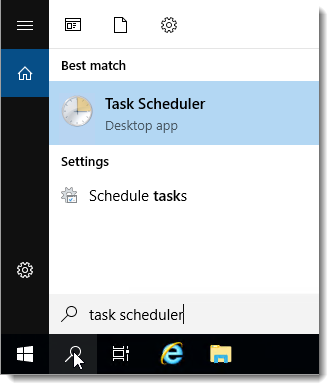
Click the Start button or the search bar, then type Task Scheduler.
-
Click on Task Scheduler to open it.
-
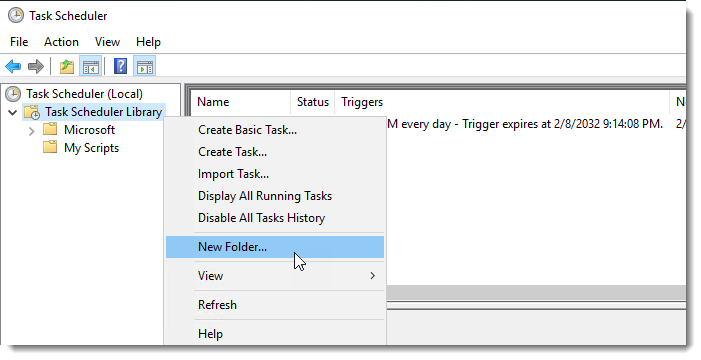
Right-click Task Scheduler Libary, then click New Folder….
-
Give it the name of “My Scripts” or use whatever makes you happy. We are using this to organize our automated scripts and keep them separate from other running tasks.
-
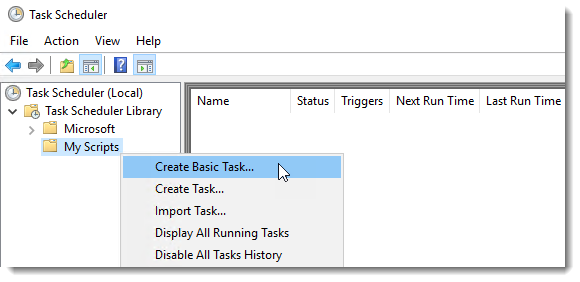
Select the newly created folder, then right-click and select **Create Basic Task…
 **
**