Upgrading to ESXi 7 update 2 SD Card
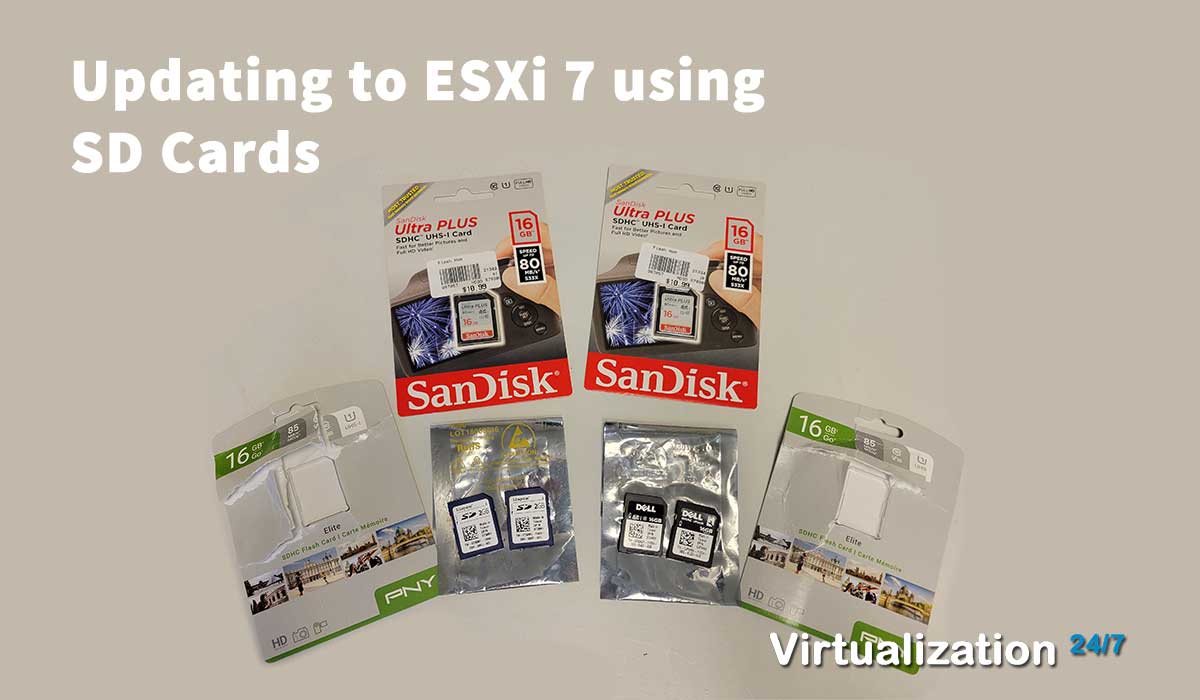
My current physical lab consists of three Dell R620s that boot off an internal Dual SD module (IDSDM) with ESXi 6.5 as the hypervisor. I’ve been putting off upgrading to vSphere 7 for several reasons but now that I’ve committed to upgrading to vCenter Server 7 and ESXi 7, I did encounter an issue with the boot partition for ESXi of it not having enough space - I use 2 GB cards. Time for an upgrade.
While you can use SD Cards, there are caveats, warnings, and VMware’s own documentation stating that support will be deprecated in upcoming versions with only specific brands/models of SD cards being supported officially. This is my lab so I don’t care if it’s officially supported or not, as long as it works. Through my own experimentation, I can say that I used 3 different brands all at 16 GB capacity and all are working with ESXi 7 Update 2 with no major issues. Explanation of a minor issue regarding actual capacity follows further below.
I woke up on Christmas morning (2021) when almost everything was closed and decided that I’d upgrade my ESXi hosts, having upgraded vCenter Server to version 7.0.3 build 18778458 that night before with no issues. Silly me. I thought I’d breeze through the upgrade process for my ESXi hosts and be done in 1 or 2 hours. It didn’t quite work out that way.
The three problems I encountered were:
- The boot disk has a size of 1946MB, the minimum requirement of the upgrade image is 3814MB
- SD Cards not recognized after replacing them with higher capacity cards
- ESXi would not install on what seemed identical sized SD Cards
1st problem - SD Cards capacity too small
I tried upgrading the first host using Lifecycle Manager by uploading a custom OEM Dell ESXi image. The process started but abruptly errored out with a status of “Incompatible”. The detailed message read: “The boot disk has a size of 1946MB, the minimum requirement of the upgrade image is 3814MB.”
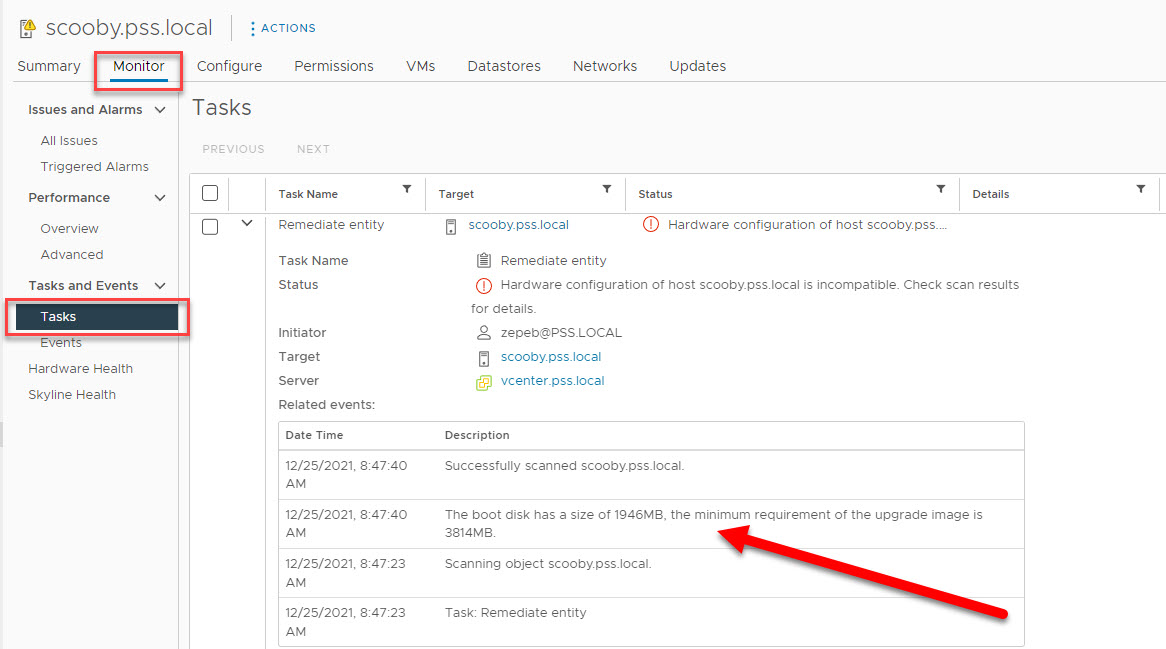
This was simple enough to fix since this stated exactly what my issue was and what I needed to fix it. I drove out to the Walgreens and picked up a couple of 16 GB SD Cards. This was on Christmas day so, hence, Walgreens. It’s open 24/7 year-round.
I was able to upgrade the first host without any further issues. The next host, unfortunately, I ran into multiple problems.
2nd problem - SD Cards not recognized
Replacing the lower capacity cards with higher capacity cards was quick. I opened up the case, removed the old cards, installed the new 16 GB SD Cards, then booted up the server. I loaded up an ISO image for ESXi using the virtual CD-ROM via the iDRAC. However, during the installation portion, the SD Cards were not recognized.
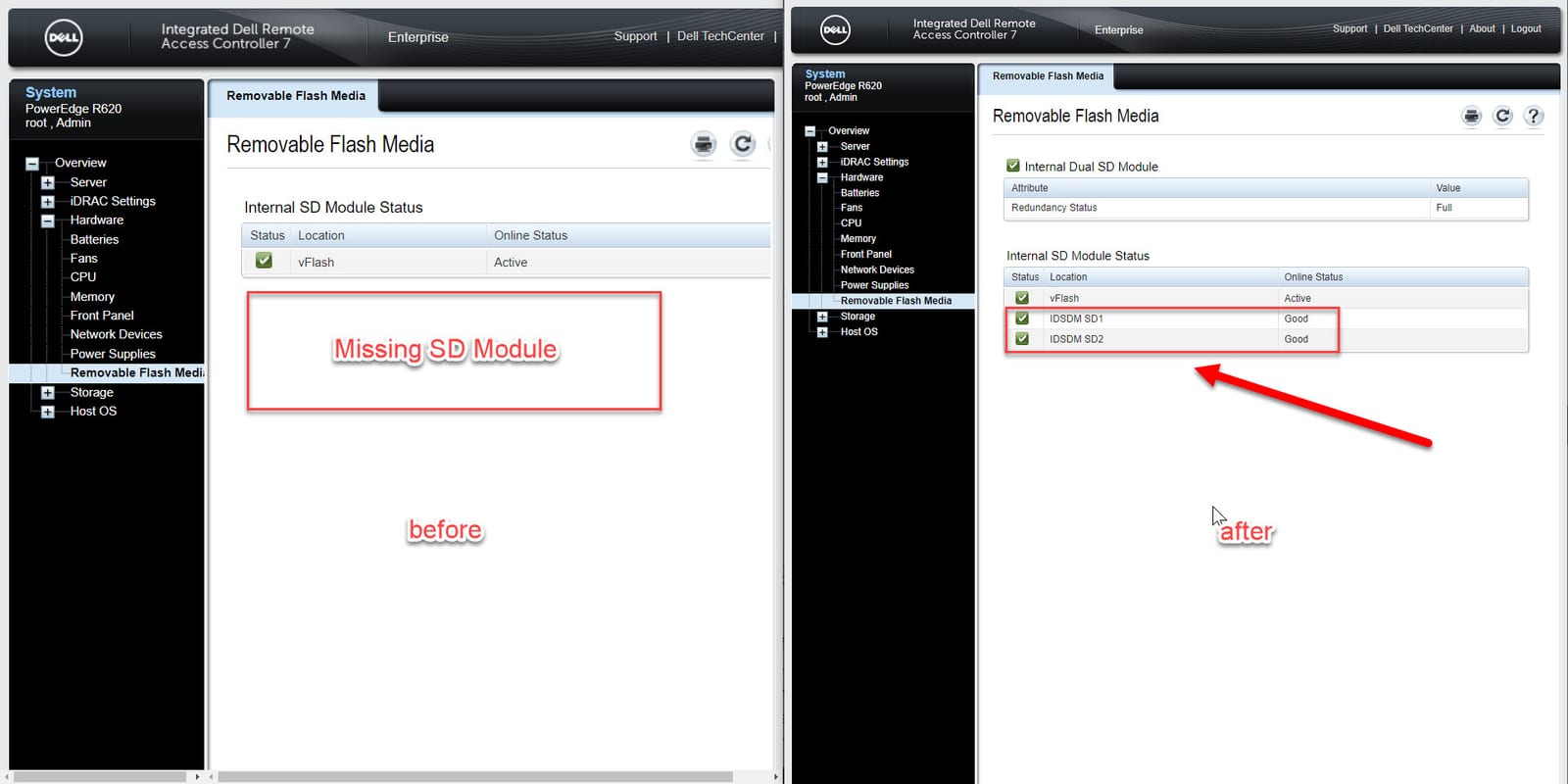
Both during the installation phase of ESXi and within the iDRAC, the SD Cards were not present. My first thought was that I had inadvertently unseated the IDSDM or not seated the SD Cards properly, but neither was the case.
After searching, I came across a Dell Community post that led me to the correct fix for this. It looks like the IDSDM is a bit finicky when replacing the cards. The solution was to download and run the Dell Internal Dual SD Module A03 firmware Update. This is an ISO file that you mount via the iDRAC or can burn onto a CD/DVD. When you boot from it, make sure that you Bios Boot Manager and not the UEFI interface since that will not work.
The automated process will update the firmware and format the cards, making them appear again.
3rd problem - SD Cards not identical in size
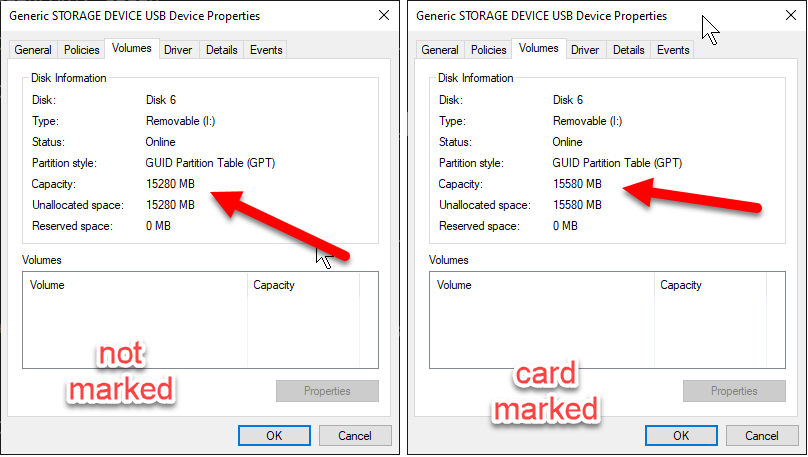
The final problem I encountered was with one set of SD Cards. While both cards stated they were both 16 GB in capacity on their labels, when I booted the Dell Server, the SD Card configuration utility would not mirror the cards stating that the cards were not of equal size. Apparently, you can have cards that are not of equal size, but you must first install on to the small card first, then have it mirror to the larger size card, but not vice-versa.
To confirm that the cards were not of equal size, I examined both cards in Windows 10 using Disk Management and took note of their capacity. As you can see, one card is 15,280 MB and the other is 15,580 MB. Looks like it’s enough of a difference for the IDSDM to complain.
My solution was the following after trying various attempts (hours of attempts):
-
Mark the larger capacity SD Card with a permanent marker so I would not lose track of it
-
Using Diskpart in Windows, I wiped both cards clean
-
Open the server and marked the SD slots - slot 1 and slot 2
-
Remove all SD Cards
-
Boot the server and let it initialize all hardware
-
Power down the server
-
Install the lower capacity SD card (15,280 MB) into slot 1
-
Power on and load the ESXi ISO using the iDRAC
-
Install ESXi and reboot
-
I had to force the server to boot to the SD Card for ESXi to work and load properly
-
Reboot the server to have it boot normally into ESXi without any intervention but it did not work
-
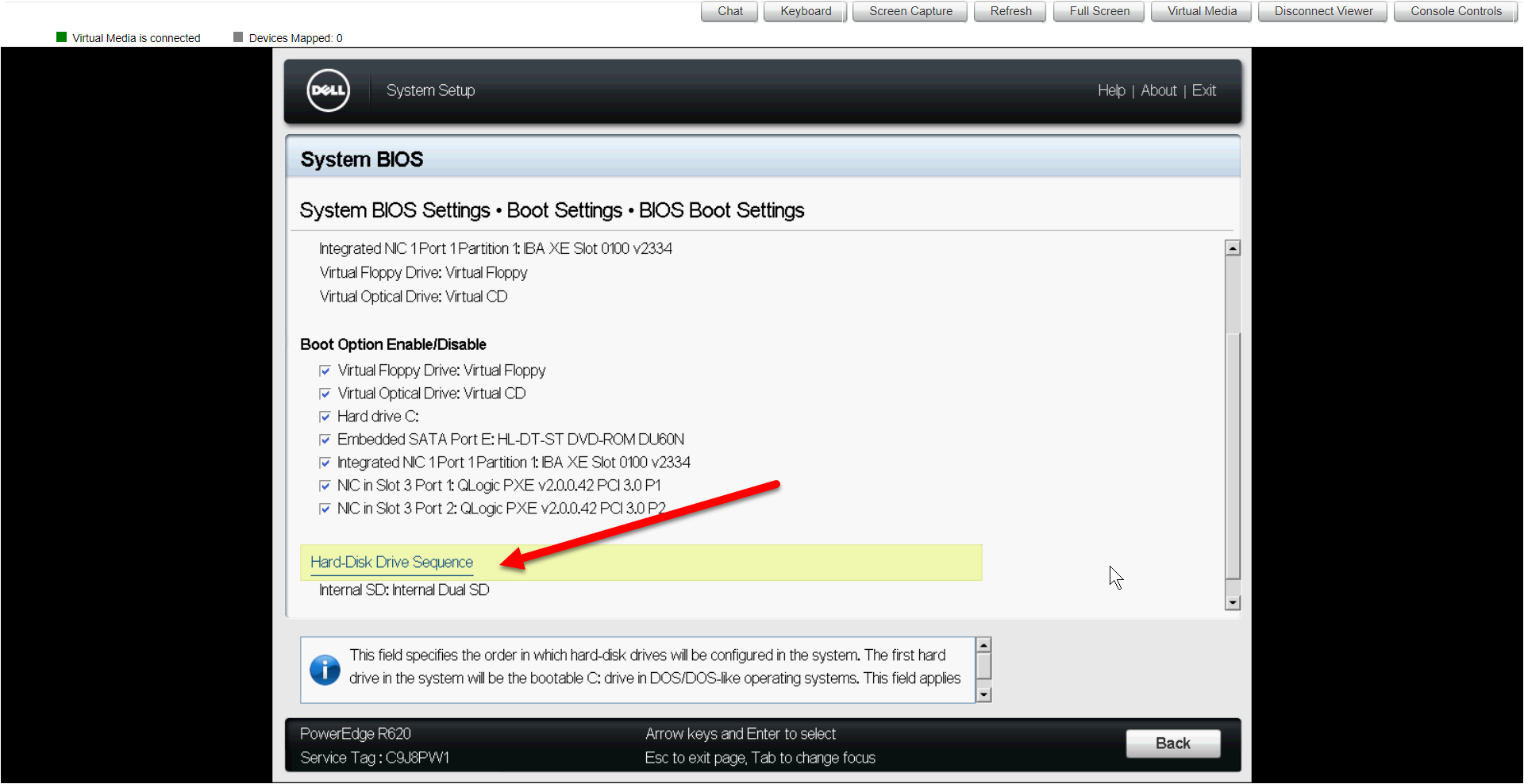
Change the Hard-Disk Drive Sequence in the BIOS to boot from the Internal SD: Internal Dual SD - booted automatically into ESXi**
 **
** -
Shutdown the server
-
Install the higher capacity SD card (15,580 MB)
-
Boot the server
-
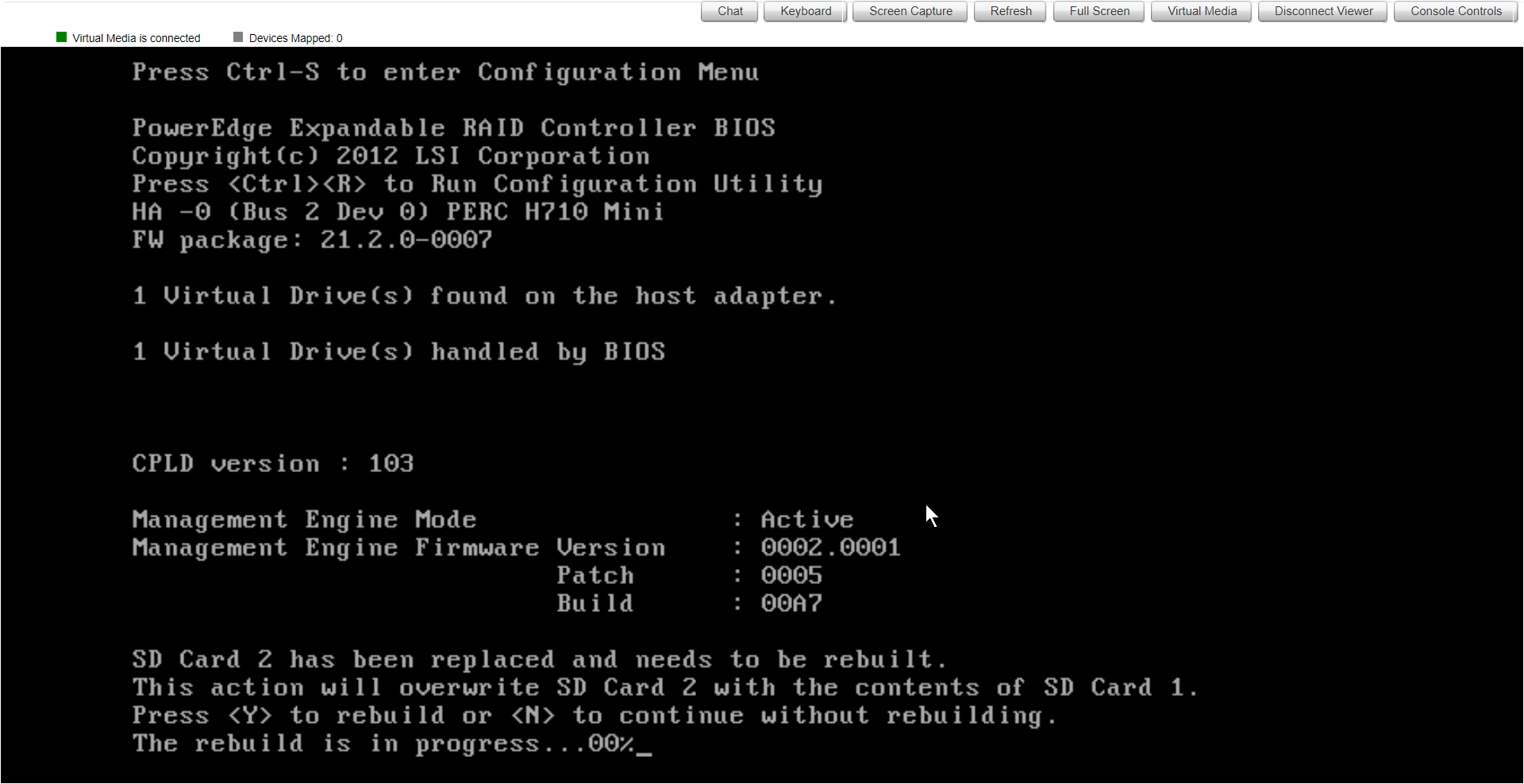
Let the SD Card Utility mirror SD Slot 1 to SD Slot 2. You’ll get automatically get asked the question of whether to mirror or not on boot. Go get coffee, this takes a while.
Observations
While I was able to overcome all the installation issues, there are a few of concerns that I became aware of during the installation and research phase.
- While using 16 GB cards is acceptable, per VMware’s documentation, it’s preferred that you use 32 GB cards at a minimum. Had I read through all the documentation, I probably would have gone with 64 GB or higher cards. ** Update *** Newer VMware KB 85685 states to use 128 GB SD Cards (recommended) but that support will be dropped in the upcoming versions of ESXi.
- The current version of ESXi 7.0 Update 2 can use the 16 GB cards, there may be further limitations in the upcoming release of 7.0 Update 3.
- While I got it working, it seems that SD Cards were not the way to go and are more trouble than their worth.
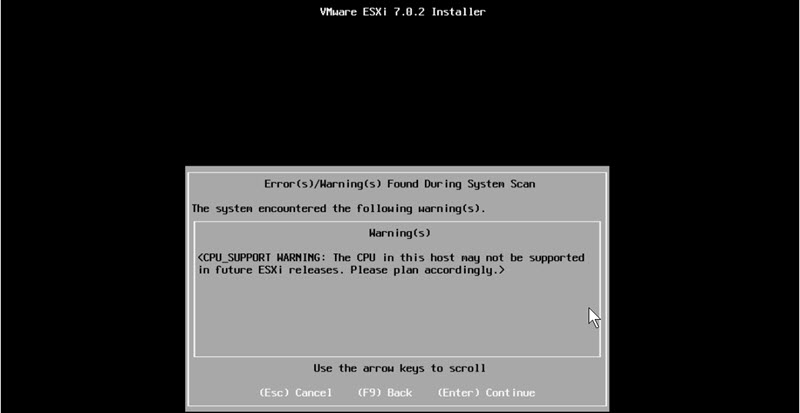
- A message appeared stating: <CPU_Support WARNING: The CPU in this host may not be supported in future ESXi releases. Please plan according.>.