iDRAC is not displaying ESXi 6.5/6.7 System Host Name
Initially, I was looking to see why when standing physically in front of the servers the name of the server did not show up on the front LCD screen even though I had configured each of my ESXi hosts to display the current hostname. I had repurposed some ESXi hosts for my lab environment and each one of them was showing the name of the previously configured hostname.
At first, I thought maybe I just needed to reinstall ESXi and reboot but that did not help. I fiddled around a bit in the iDRAC configuration screen but that yielded no results. After looking to see what could be the problem, I found a recommendation from a Dell support engineer within a community forum, which then led me to the official Dell site for the iSM.
If you run Dell PowerEdge servers in your datacenter and are looking for additional management capabilities of your physical hosts look to Dell’s iDRAC Service Module (iSM).
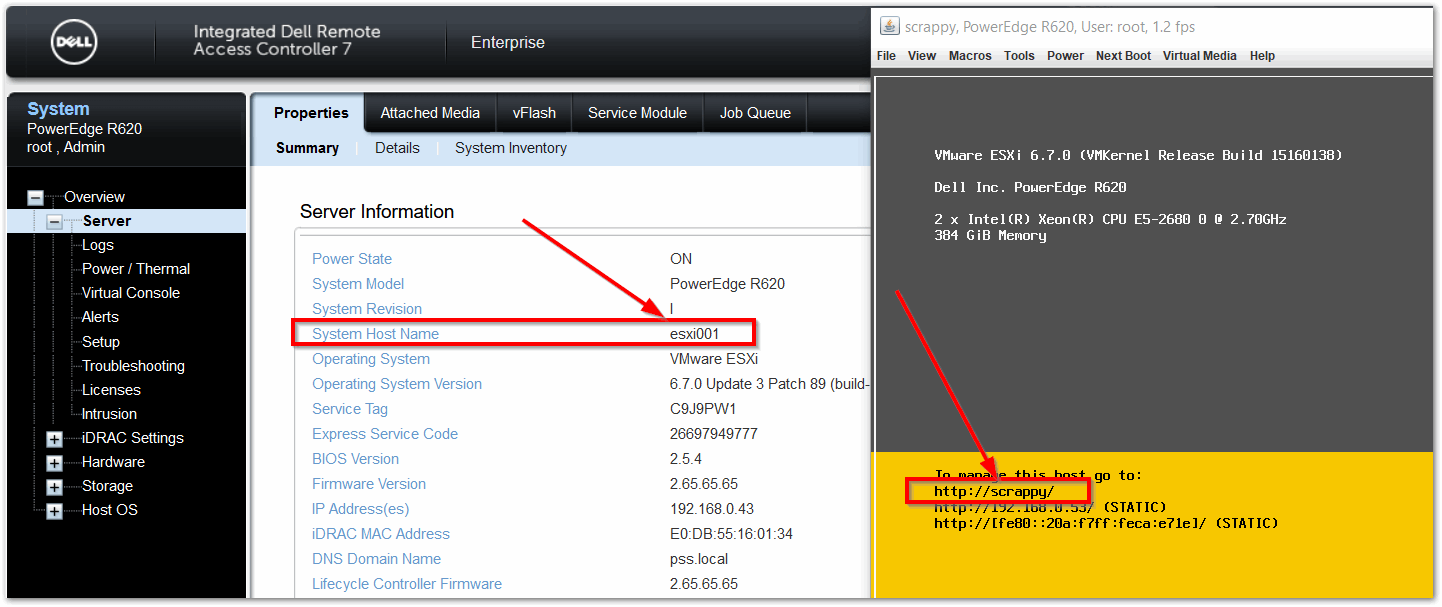
As you can see from the screenshots, the iDRAC shows “esxi001” but the DCUI shows “scrappy” which is the correct name assigned to that particular ESXi host. To force the name update, I uploaded the iSM to Update Manager (VUM), created a baseline, attached the baseline to the cluster, placed each host into maintenance mode, installed the iSM, and rebooted each ESXi host.
Let’s look at how to obtain and install the iSM.
Download the appropriate version of the ISM for your environment:
- Navigate to Dell.com/support and select the server model or enter the service tag.
- Select Drivers & downloads
- Select the Operating System for your system
- Keyword iSM
- Download the latest revision provided for Dell EMC iDRAC Service Module
Now that you’ve downloaded the iSM, let’s upload it to Update Manager and deploy it to your ESXi hosts.
-
Log in to vCenter Server
-
From the Menu, choose Update Manager
-
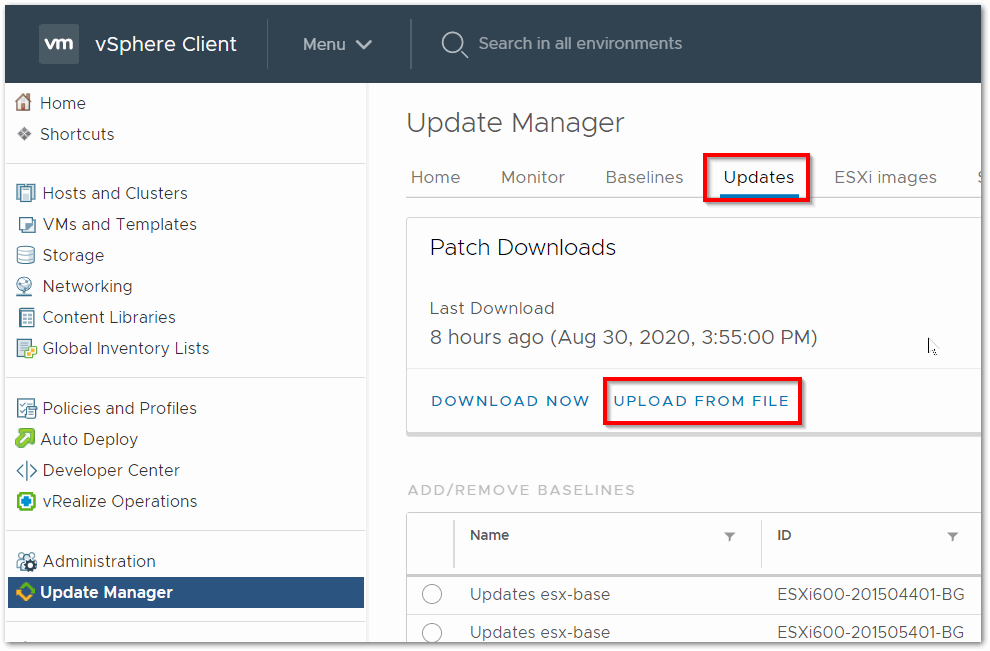
Click on Updates, then **UPLOAD FROM FILE
 **
** -
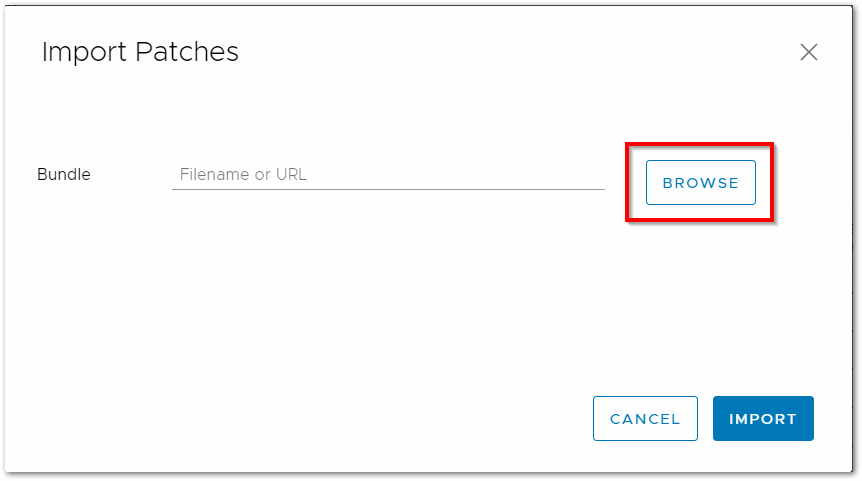
Click BROWSE
-
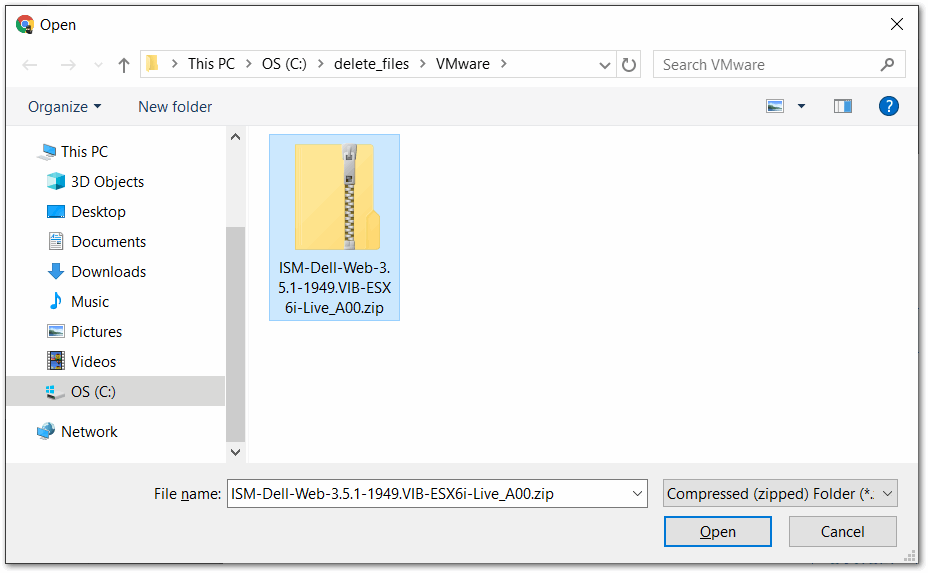
Navigate to where you download the file, select the file Zip file (no need to extract it), then click Open to upload the file.
-
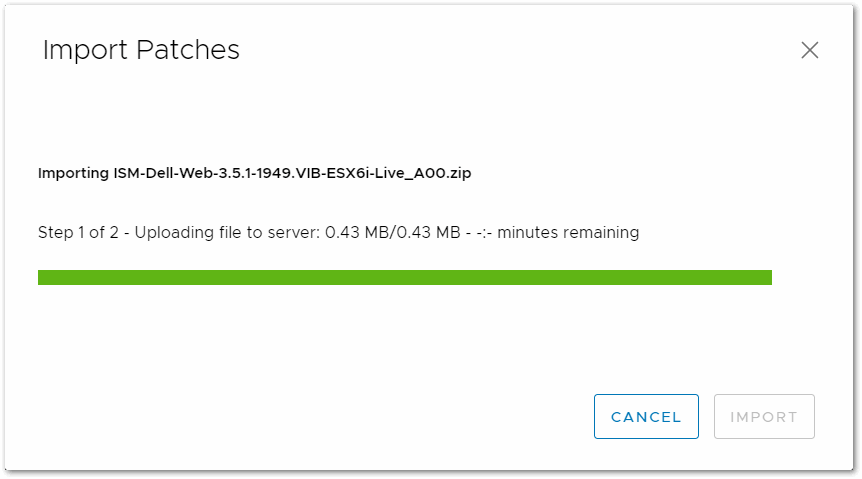
If successful, you should no errors and a screen like the one below. I have encountered an issue where no matter what I did, the file would not upload. In that case, the Update Manager database was corrupted and needed to be reset.
-
Click on Baselines, then New to create a baseline
-
Enter a name for the new baseline, such as Dell iDRAC Service Module (iSM), enter a description, and select Extension for the content.
-
Click Next